
This section contains guidance and files to enable translation of the user side of the system
Please download the script files “scheme-translations” and “UI-translations” and open in Excel.
The initial translation can be conducted using Google translate by following the steps detailed below:
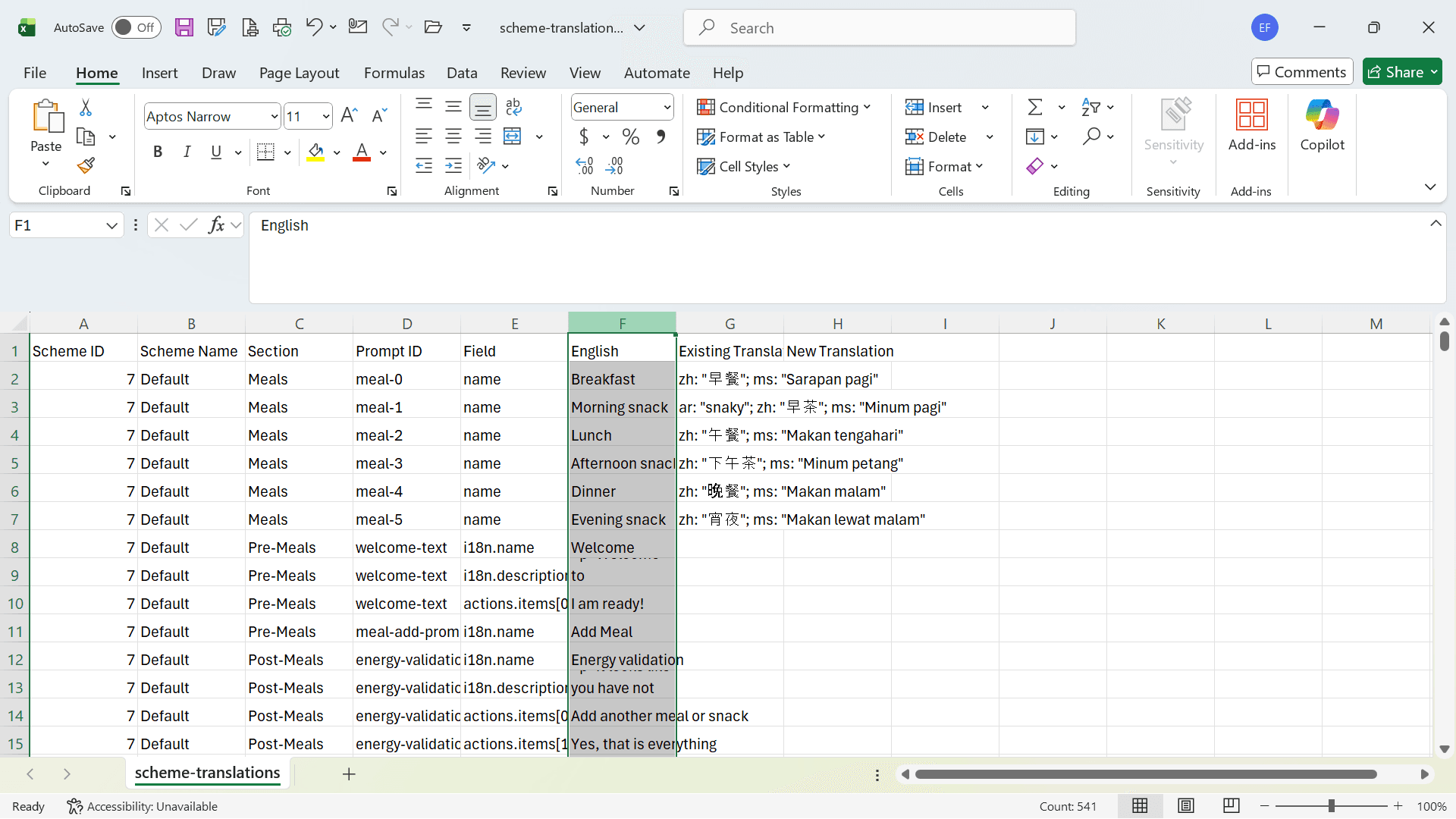
In Scheme translations copy and paste column F and save with a new name e.g. “scheme-translations-Vietnamese”.
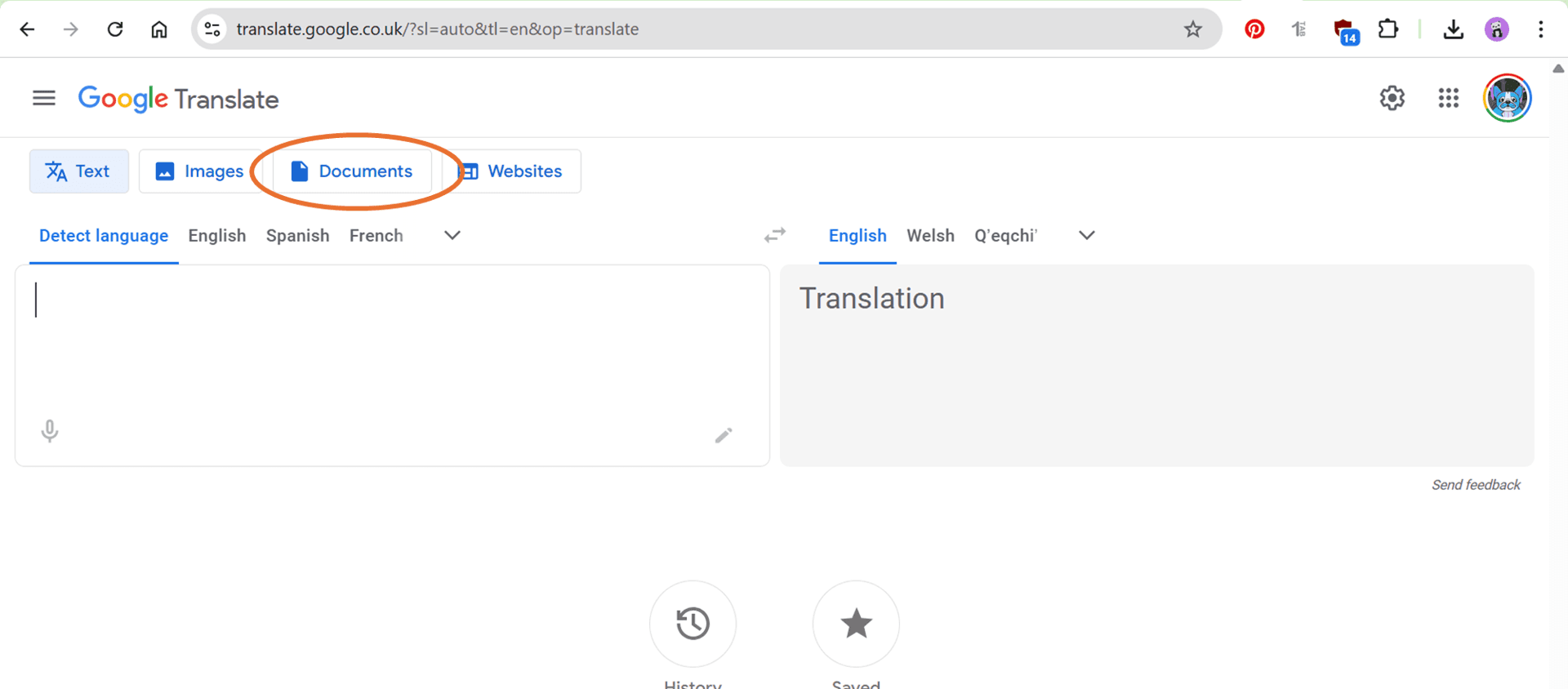
Go to Google Translate and click on documents.
Click on “Choose a file”
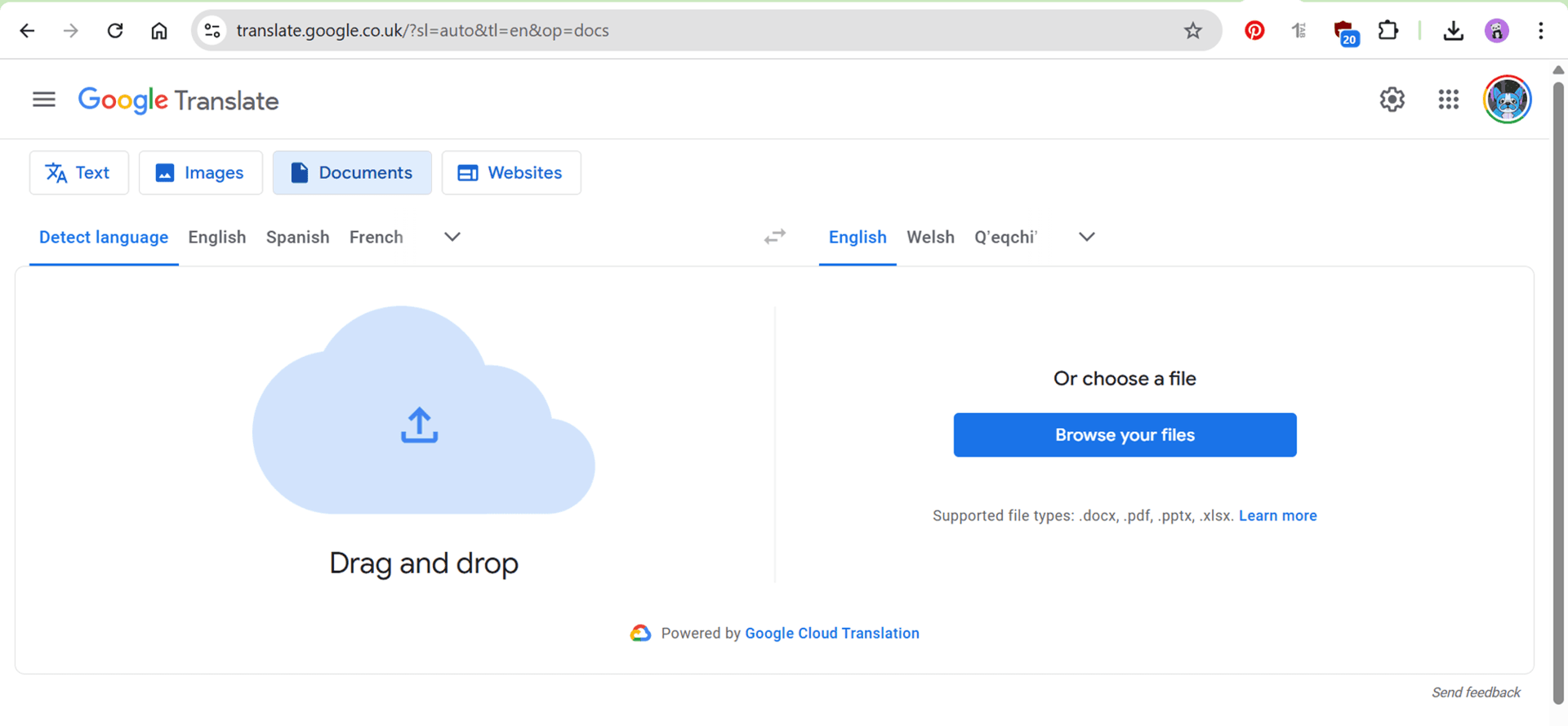
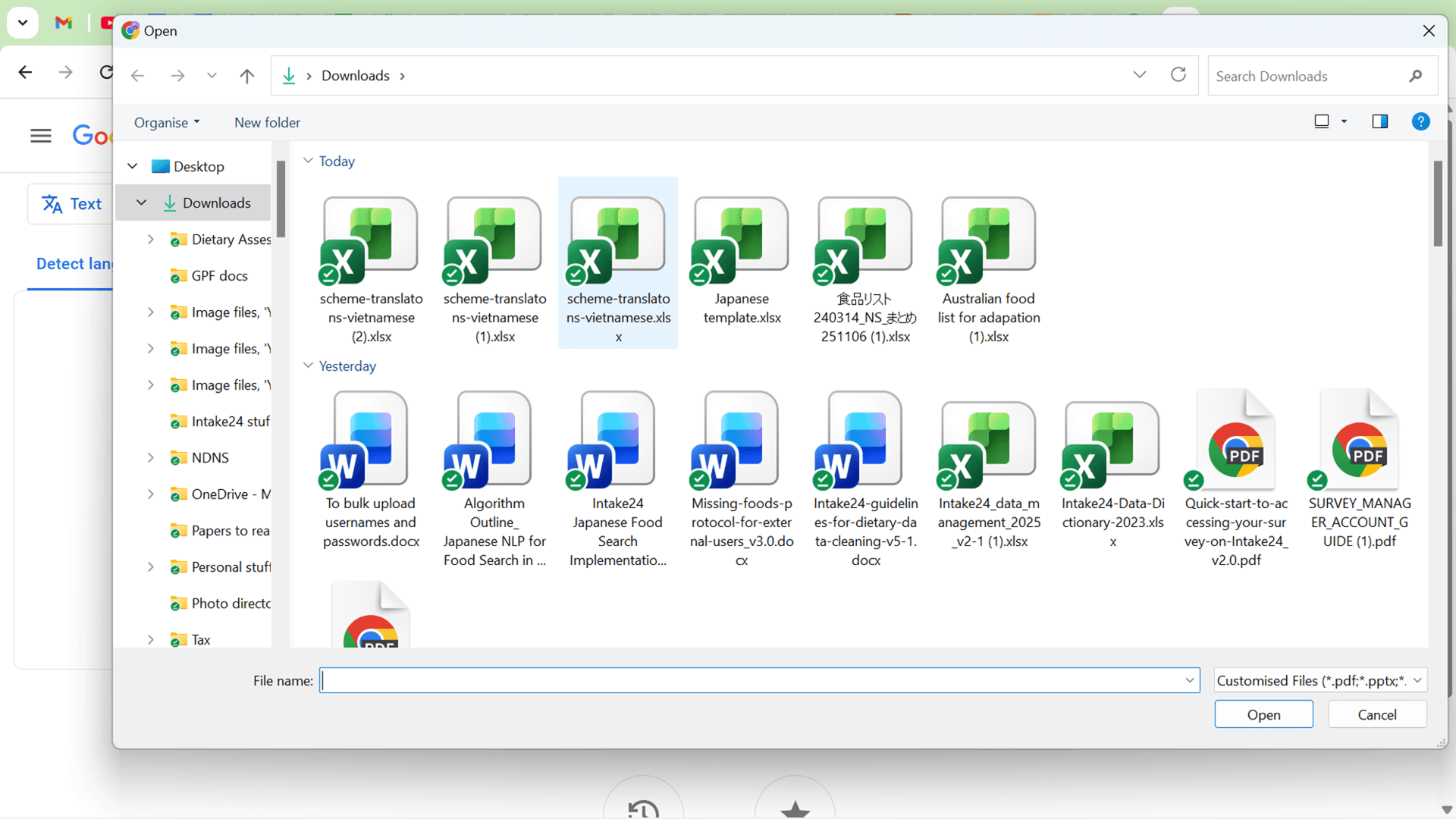
and upload the new scheme-translations spreadsheet.
Choose the target language
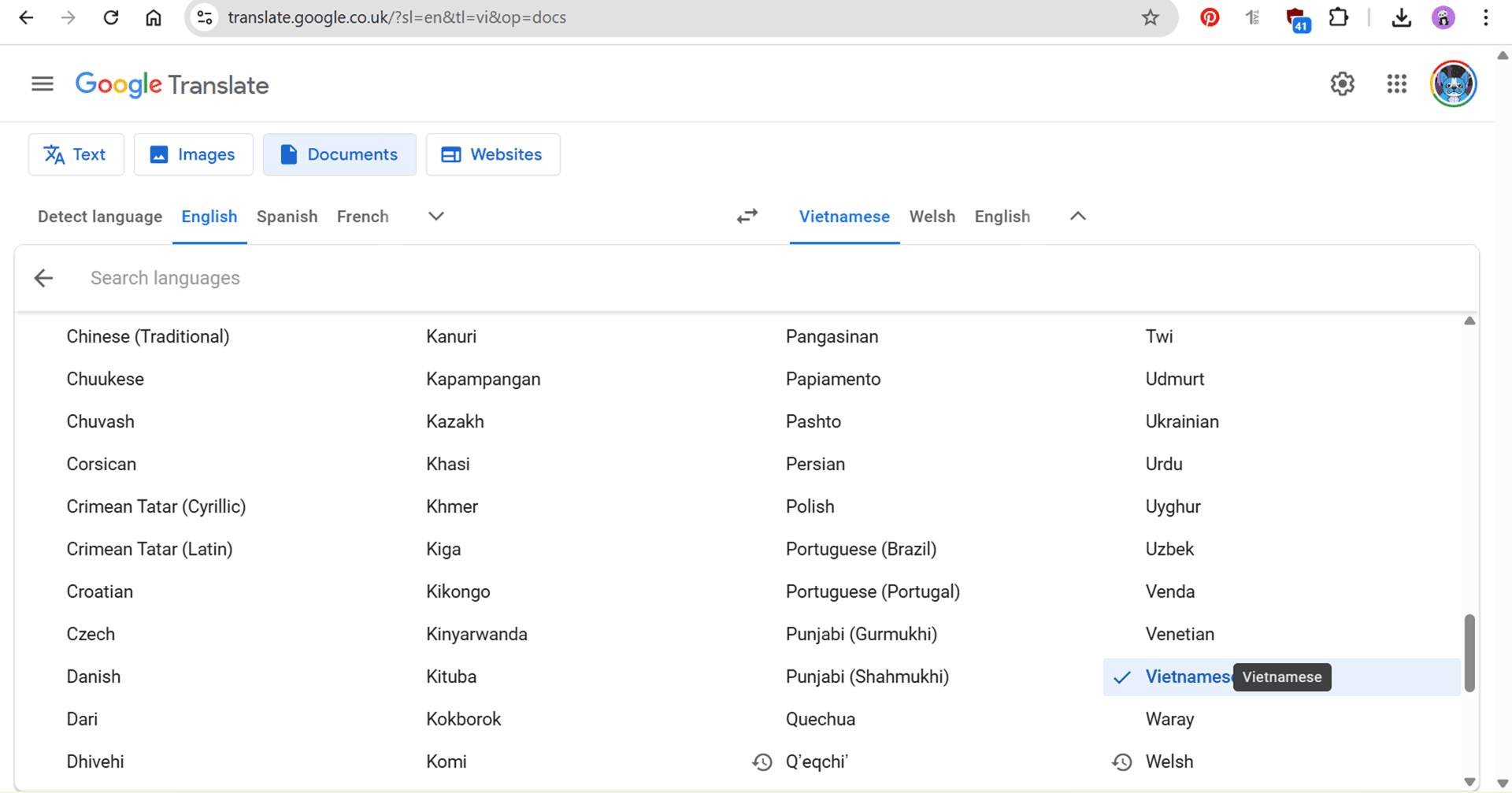
and click translate.
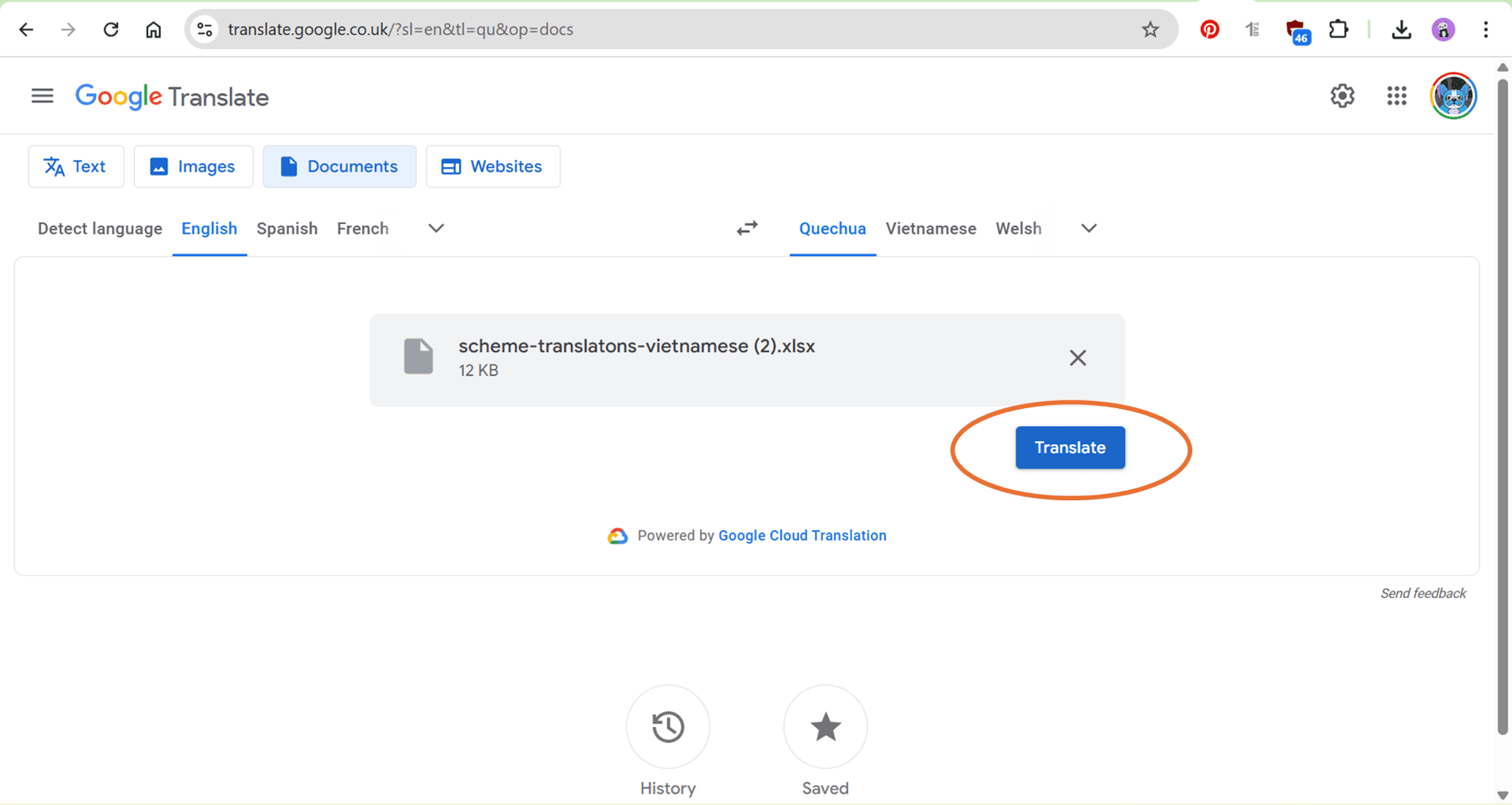
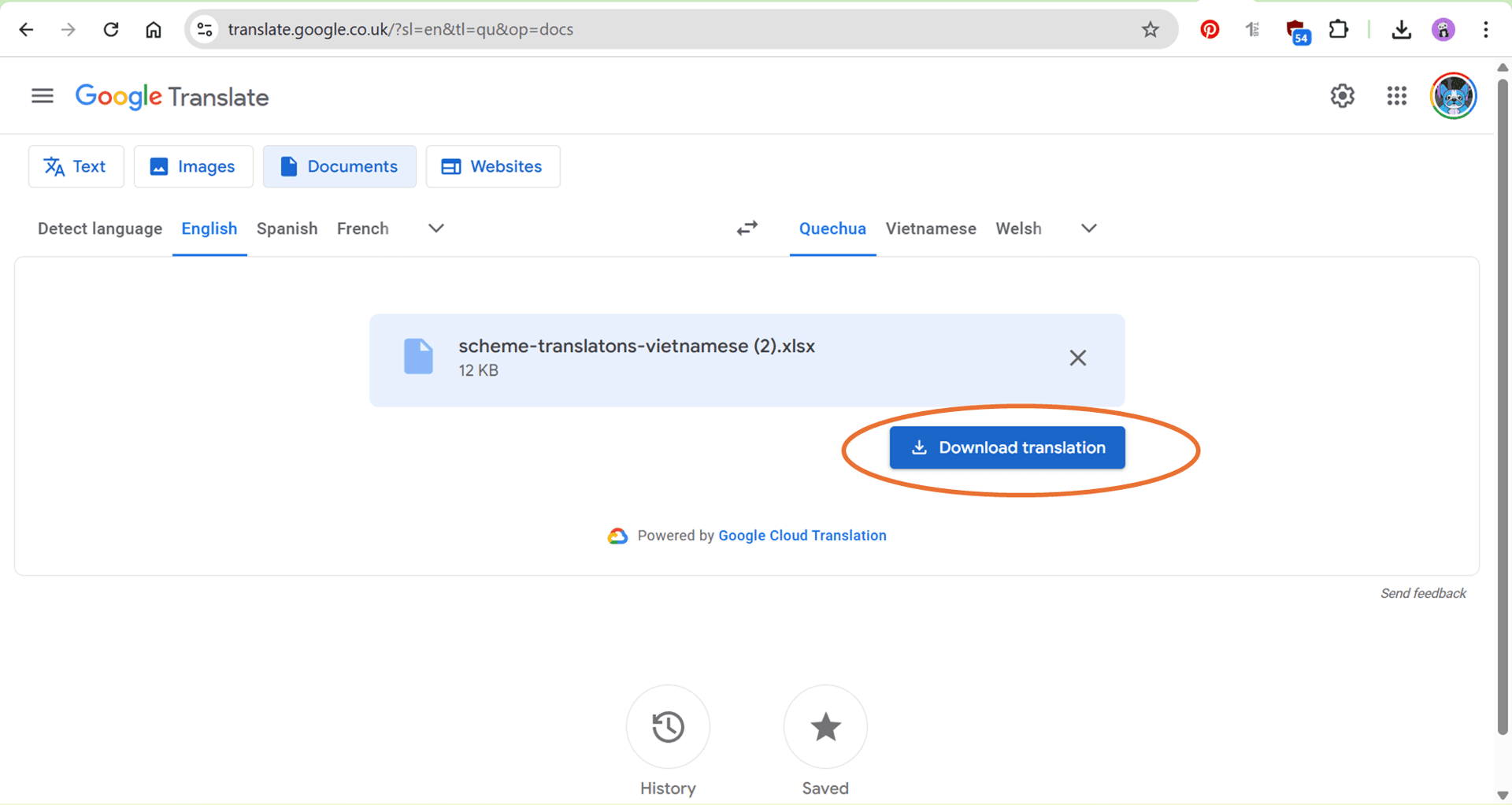
Download the translated file.
The translation will be in the first column.
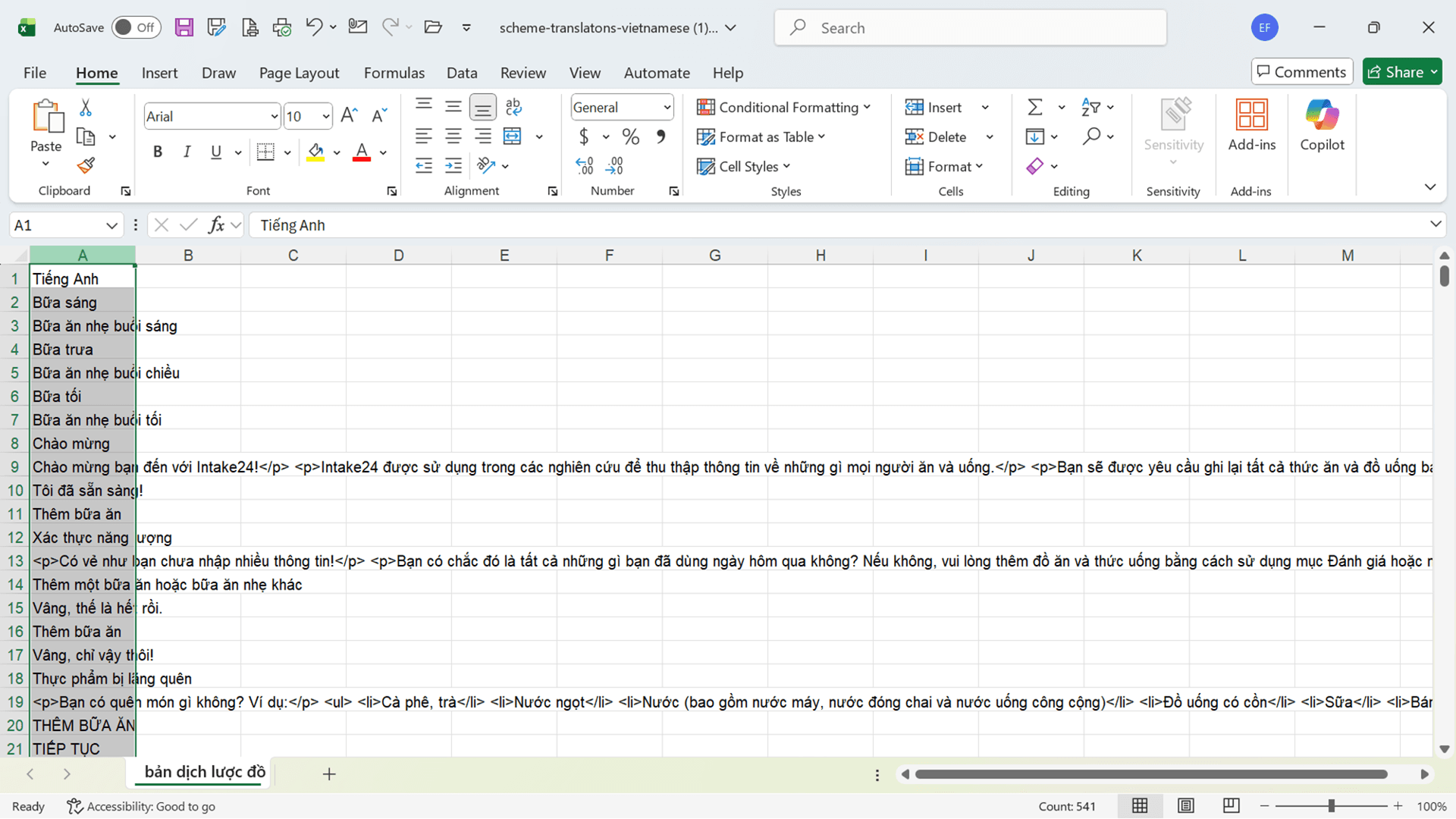
Create a column next to the English column in the original “scheme-translation” file. Enter the language in the top row and enter the translated text next to the English version.
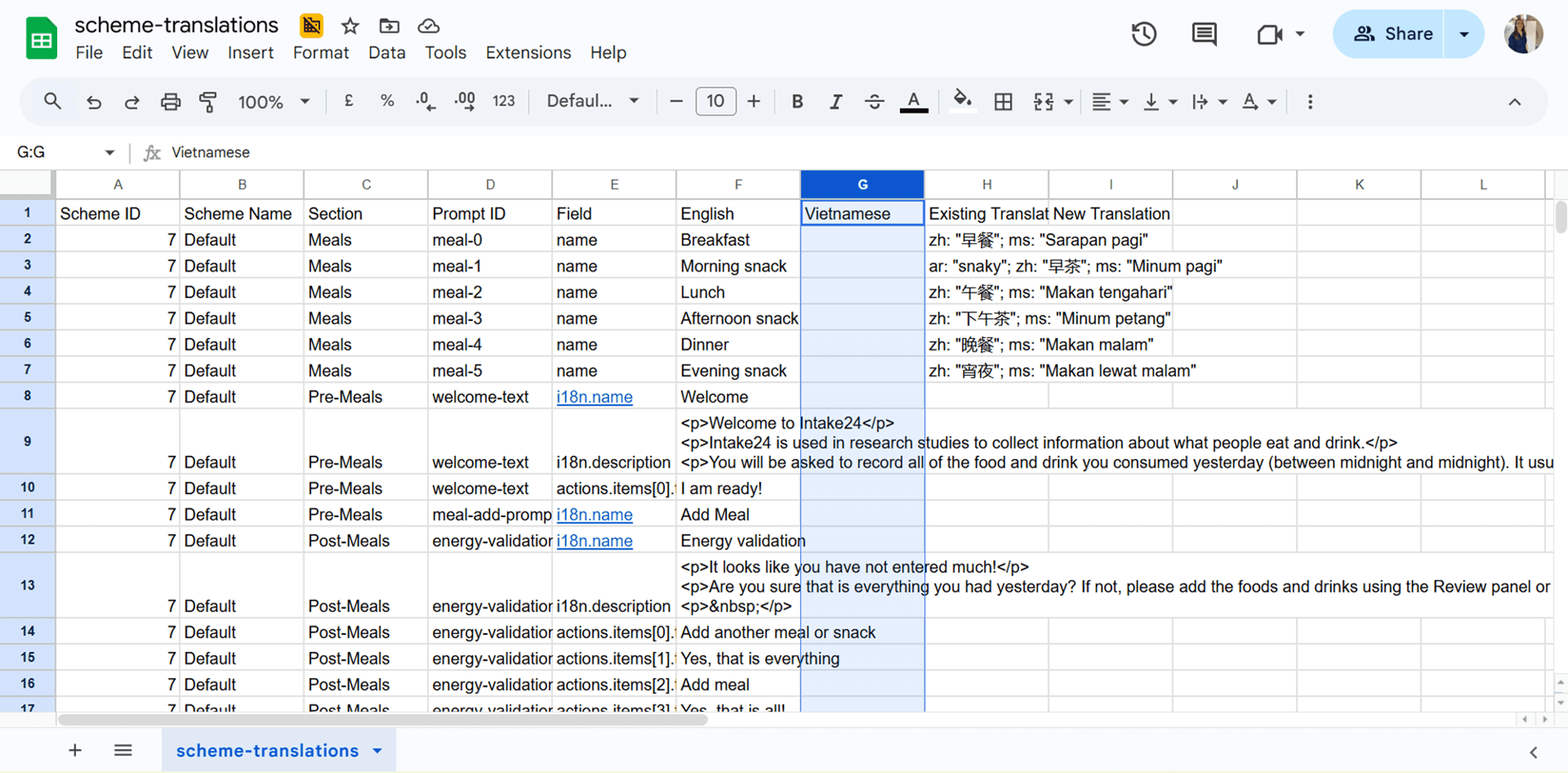
Check that all text within ' ' has been translated except for any text within curly brackets { }, which are placeholders and should not be translated.
So, for example, 'Do you want to delete {item}?' would translate to ¿Quieres eliminar {item}? or Adakah anda mahu memadam {item}
The placeholder text within the curly brackets is used to retrieve information from the system, such as the name of a meal or food item.
In UI translations copy and paste column D into a new document and repeat the process in google translate.
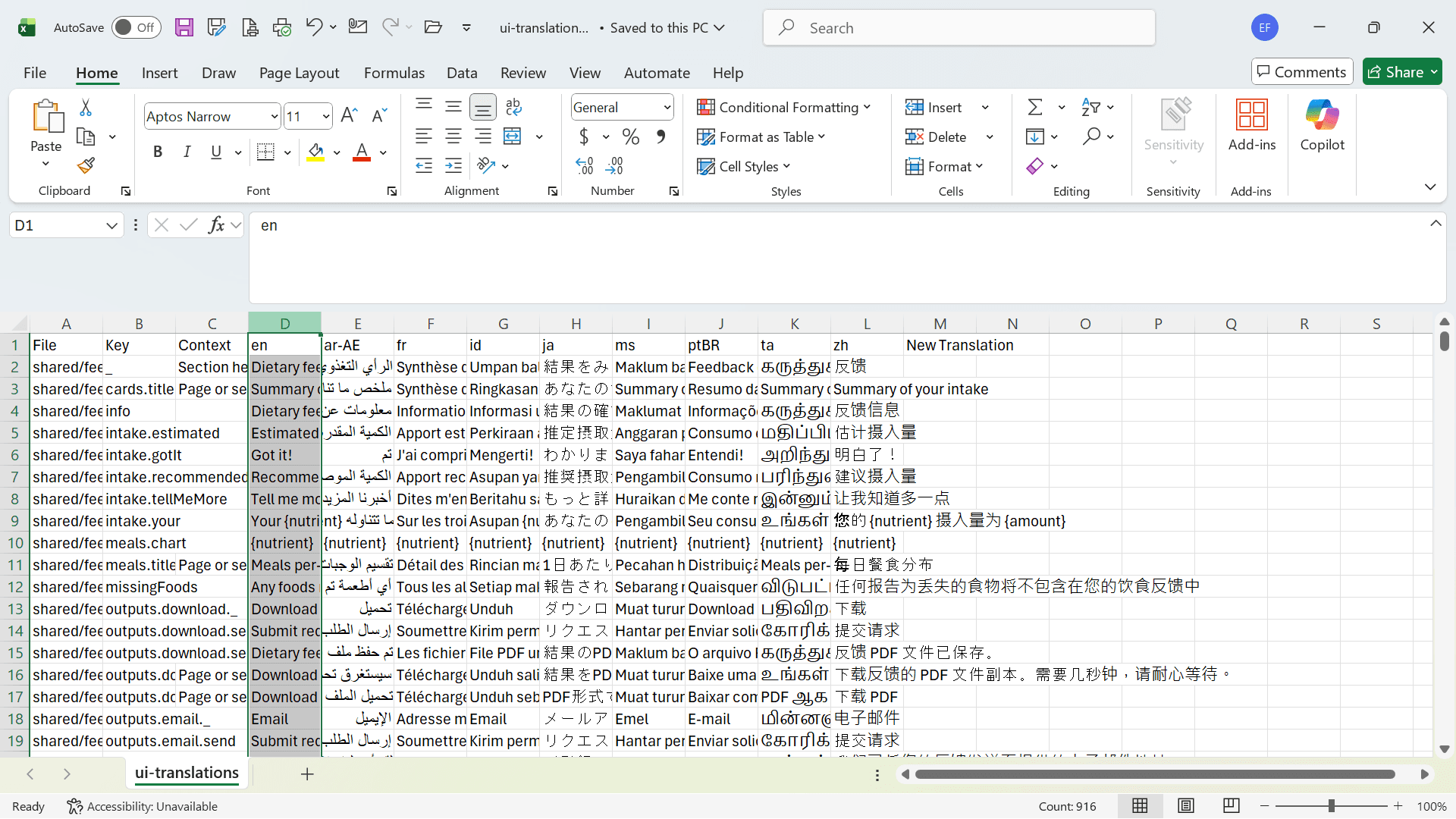
Create a new column to the right of the English text in column D, enter the language in the top row and enter the translated text next to the English version to enable easy checking.
The translations should now be checked
Screenshots of the system showing where the text appears within the Intake24 recall are included in the detailed guidance in order to provide context to help with the translation.